

As a business analyst, chances are you’re regularly merging multiple Excel files like monthly reports, regional datasets, or exports from different systems.
Merging datasets in Excel typically combines data from multiple files or sheets into one dataset, either by appending rows (concatenation) or matching data using a common column (join).
While Excel formulas like VLOOKUP are great for small or ad-hoc tasks, if you’re regularly merging data, it makes sense to take a repeatable approach. That way you can reduce the risk of errors creeping in from any manual steps.
This article walks through both manual and repeatable options so you can choose what makes sense for your situation.
The two ways to merge Excel files: Manual vs repeatable
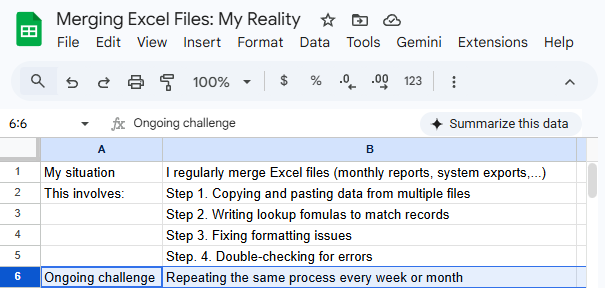
The manual approach: You perform these steps each time using formulas and manual steps.
The repeatable approach: You build the processes once with a visual tool like KNIME and reuse them whenever data arrives.
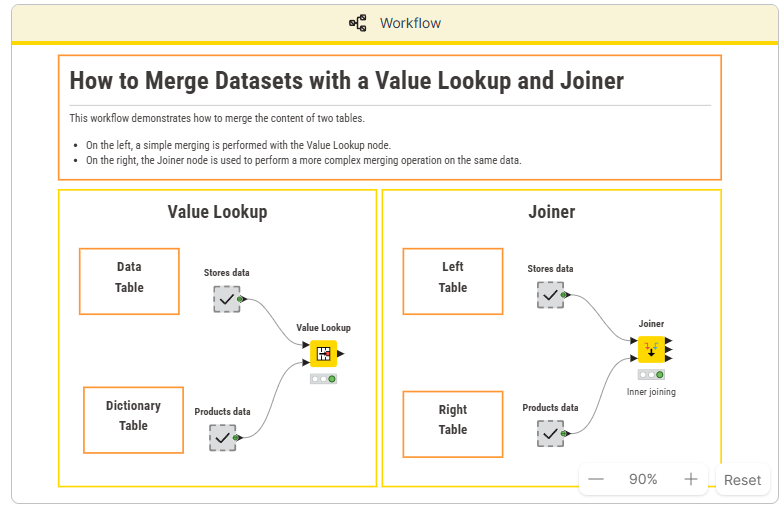
Either way, you can save time by being smart about exactly how you merge your tables to minimize data cleaning steps afterward.
Why a repeatable workflow matters for Excel users
If merging Excel files is something you do regularly, the biggest improvement isn’t necessarily a better formula, but a process that eliminates the manual work.
One of the problems with Excel is that processes are largely performed directly in the working file. When you apply a formula, it changes your data. If you make a mistake there may be no easy way to undo the process after several steps have been subsequently applied.
This is where a tool like KNIME comes in.
KNIME is a low-code platform that lets you build visual workflows to automate and augment your spreadsheet work. Instead of performing steps directly to your working file, the transformation logic is defined as a series of connected steps. Data is passed through those steps to produce the final result. This means the original data remains intact, processes can be reused instead of recreated, and errors are easier to identify and correct.
Instead of rewriting formulas, copying and pasting data, and repeating the same steps, with KNIME you define how your data should be combined, save it as a workflow, and re-run it whenever you need.
Let’s now look at how to merge files manually with Excel and automatically with KNIME using the concatenate and join techniques.
Concatenate vs Join: Choosing the right way to merge your spreadsheets
You can use concatenations and joins to combine your data exactly the way you want.
- Concatenation is essentially appending data, as in adding a bunch of rows or a bunch of columns in addition to all the rows or all the columns that are already there.
- Concatenation example: You have one Excel file per region and want to combine them into a single dataset.
- Joins are about matching data. Use this when you have two or more tables with a common column. These can further be broken down based on how exactly you want them combined.
- Join example: You have one file with customer transactions and another with customer details. You can join them using a common field like Customer ID
Here’s a table showing different kinds of joins.
Inner join |
Returns only rows where there is a match in both tables based on the specified join condition. | Joining "Customers" with "Orders" on customer ID returns only rows where a matching customer ID exists in both tables. |
Left join |
Returns all rows from the left table and matching rows from the right table. If there is no match, NULL values are returned for right-table columns. | Returns all customers; for those with orders you get order info, for those without orders you get NULLs in the order columns. |
Right join |
Returns all rows from the right table and matching rows from the left table. If there is no match, NULL values are returned for left-table columns. | Returns all orders and includes customer info where available. Orders without matching customers get NULLs in the customer columns. |
Full outer join |
Returns all rows when there is a match in either table. If there is no match, NULLs are returned for columns from the non-matching side. | Returns all customers and all orders. Matched rows get combined info; unmatched rows get NULLs on the non-matching side. |
Cross join |
Combines every row from the left table with every row from the right table. No join condition is required. | Joining "Colors" with "Sizes" returns every possible color–size combination, regardless of any relationship between them. |
How to merge two spreadsheets by concatenating
In Excel: The easiest way to concatenate data without leaving Excel is to use a VLOOKUP. Suppose you have data in Sheet1 and Sheet2 within the same workbook, and you want to concatenate data from columns A and B in Sheet1 with columns C and D in Sheet2. In the new sheet, you can use a formula like this in the first cell (assuming your data starts in row two) and drag the formula down to concatenate data for each row.
Unset
=IFERROR(VLOOKUP(A2, Sheet2!$C$2:$D$100, 1, FALSE), "") & IFERROR(VLOOKUP(A2, Sheet2!$C$2:$D$100, 2, FALSE), "")
In KNIME: If you want to consistently merge spreadsheets that are in this format (as well as add other data cleaning steps) then it’s more error-proof to do so in KNIME. KNIME is also a better alternative for merging spreadsheets that house large amounts of data.
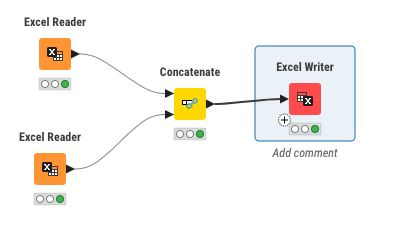
For that, you can use two Excel Reader nodes to pick the two spreadsheets you want to combine, and follow it with a Concatenate node. Then, you can decide how you want to export it—say, as an Excel file in the same folder on your Desktop.
How to merge two spreadsheets with any kind of join
In Excel: To combine two spreadsheets using an inner join in purely Excel, you can use a VLOOKUP. First, let’s assume we have two sheets named Sheet1 and Sheet2 and you’d like to combine them based on a column called CommonColumn. In the new sheet, you can use a formula like this (assuming data starts in row two):
Unset
=IFERROR(VLOOKUP(A2, Sheet2!$A$2:$B$100, 2, FALSE), "")
This formula assumes that the common column in "Sheet1" is in column A, and the data you want to retrieve from "Sheet2" is in columns A and B (although, of course, you can select many more columns). Drag this formula down to apply it to each row in your new sheet.
However, you need slightly different formulas for different joins. See the full chart below:
| Inner join |
=IFERROR(VLOOKUP(A2, Sheet2!$A$2:$B$100, 2, FALSE), "") |
| Left join |
=IFERROR(VLOOKUP(A2, Sheet2!A:B, 2, FALSE), "") |
| Right join |
=IFERROR(VLOOKUP(A2, Sheet1!A:B, 2, FALSE), "") |
| Full outer join |
Perform a left join, then a right join, then remove duplicates. |
In KNIME: You can turn this task into a repeatable and error-proof process using a KNIME workflow instead. Again, you need two Excel Reader nodes, followed by a Joiner node, and, finally an Excel Writer node.
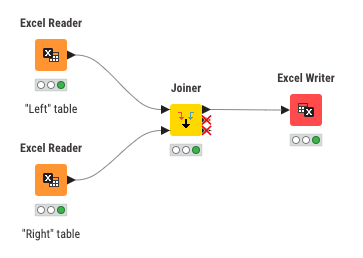
You can set whichever kind of join you’d like by hitting the gear icon above the node.
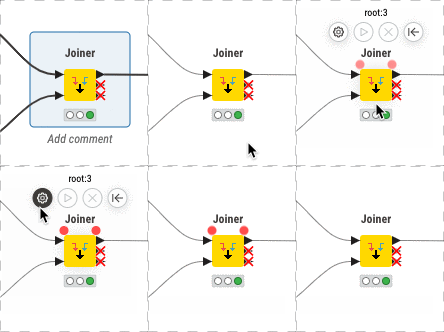
When you configure the Joiner node, you’ll get a handy visual to make sure you’re combining based on the criteria that you’d like.

You’ll also need to choose the column that includes the criteria you’d like for matching. In our example, if both Sheet1 and Sheet2 have CustomerIDs, that’s what would be selected.

Typical use cases for a repeatable workflow
| Scenario | Why it’s a problem | How a repeatable approach helps |
| Each team maintains its own spreadsheet (sales, inventory, headcount) and you’re responsible for bringing everything together | Manual consolidation is time-consuming and inconsistent | Set the workflow to collect the data automatically and combine the files the same way every time |
| You regularly export data from multiple systems and need to combine them for analysis | You’re repeating joins and preparation work for every update | Reuse one workflow and improve reliability with less manual errors |
| You regularly receive files with slightly different formulas and have to clean before combining | It’s easy to miss formulas when done manually | Apply consistent cleaning rules automatically |
| What started as a small Excel task has grown over time with more files and increasing complexity | As data volumes grow, Excel processes become slow and fragile | KNIME is a data science tool designed to handle huge amounts of data with ease. So you won’t have performance issues. |
When Excel is enough and when to switch
Excel is a powerful and flexible tool, and for many tasks, it’s all you need.
But as your data processes become more frequent or complex, it’s worth recognizing when manual approaches start to slow you down.Excel is enough when:
- You’re merging one or two files occasionally
- The process is quick and easy to repeat manually
- Your datasets are relatively small
- You’re working on ad hoc or one-off analysis
Consider switching when:
- You’re merging files weekly or monthly
- You’re working with many files at once (e.g. multiple regions or teams)
- File sizes are growing or performance is slowing down
- You spend time fixing formulas or checking for errors
- You need a reliable, repeatable process others can use or trust
Start automating your Excel workflows
Most people start with KNIME to automate tasks like merging spreadsheets, cleaning and preparing data for reporting.
Once these processes are automated, it becomes eaiser to combine data from multiple systems, analyze larger atasets and then explore more advanced techniques like machine learning, geospatial analysis, and agentic AI.
Explore KNIME for repeatable workflows.